Frequently Asked Question
Send emails from the word processor
You can only send emails from the word processor, you cannot view incoming emails.
Sending email from the word processor allows you to send word processor documents as attachments.
NOTE When sending emails from the word processor, the email body text is generic. You cannot set the text on outgoing emails.
- Open the word processor and create the letter to be emailed, from template or a blank document.
- Click
 on the toolbar, or select File > Send Mail to display the BP E-mail screen.
 - Choose an address for the To: field:
- If the template prompted you to select a contact, the contact's email address will be displayed automatically in this field.
- If you are in a patient record, or the template prompted for a patient's name, tick Use patient e-mail to insert the patient's email address.
- If the template asked you for an addressee, tick Use addressee email to insert the addressee's email address.
- Click ... to display the E-mail address screen and search for a contact's or patient's email address. Only contacts or patients with an email address recorded in Bp Premier will appear in the search.
- Type in the email address to send to.
- Click ... next to the Copies to field to insert contact or patient email addresses to send an electronic copy to. Only contacts or patients with an email address recorded in Bp Premier will appear in the search.
- Enter a Subject for the email. The subject will default to the template name if a template has been used, and the patient name if the word processor was opened from the patient record.
- Select Attach REF file if available, or REF in Saffron SP2, to attach a patient reference file, if applicable.
- Select PDF to send a PDF attachment of the word processor document in the email. If you select PDF, the PIN checkbox will appear.
- If you have selected PDF and you wish to secure the PDF with a PIN number, select PIN.
- The Use account menu indicates the outgoing, or 'from' email address. If you have a user email address set up in Bp Premier, it will appear in this menu. If you do not have a user email address set up in Bp Premier, the practice email address will appear.
- Click Send to send the letter by email.
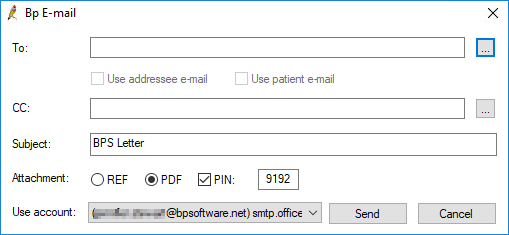
If you have opened the word processor from a patient record, the PIN will default to the patient's day and month of birth, for example, 2912 for 29 December. If you have not opened the word processor from the patient record, the PIN will be random. Take note of the PIN to provide to the patient, as this number is not stored in Bp Premier.
Even if you are sending an email from a practice account, the logged in user's name will appear as the sender when the patient receives the email.
If the email was sent from a patient record, an action will be created in Today's notes indicating that the email was sent. However, a contact note will not be created for the email.
NOTE The size limit for documents sent via email is 3MB. An error message will appear if you attempt to send a document larger than 3MB.