Frequently Asked Question
How do I send an eReferral? (Healthlink)
Last Updated 3 years ago
Creating and sending an eReferral
This method can also be used to send all forms of electronic correspondence.
- Open the patient record of the patient you want to create the referral for.
- To open the word processor, select one of:
- Correspondence Out > Add
- File > New Letter
- Press F4
- Click
 in the toolbar.
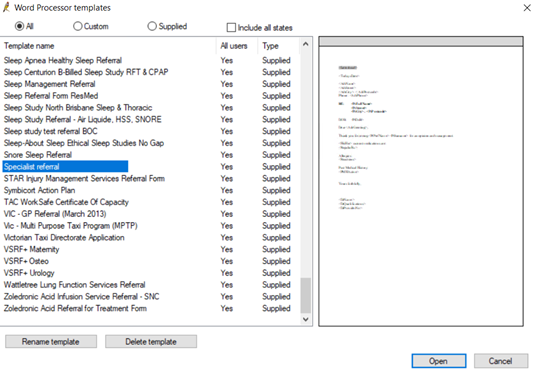
- Select Templates > Use Template. Select the template to be used for the referral from the list and click Open. The template that you choose should contain Addressee fields.
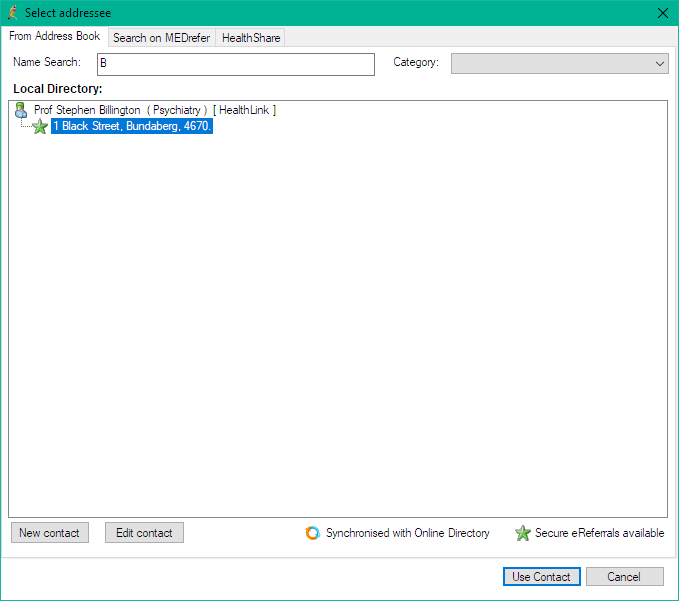
- If the chosen template contains Addressee fields, you will be presented with the Select addressee window. Choose the From Address Book tab. Select the contact from the list and click Use Contact.
- Complete the referral letter.
- Send the eReferral by clicking the HL7 icon, or select File > Export HL7. If you did not select a contact when you created the document, you will be prompted for a contact now.
- The Document details screen will appear. If Save as Draft is ticked, untick and click Save to send the eReferral.
- The eReferral letter will be wrapped into a PDF file format for the messaging provider and saved to the folder specified for the messaging provider for outgoing messaging. The file will be transmitted, and the document will be saved into the Correspondence Out section of the patient record.
A progress note will be added to the patient record detailing the recipient and messaging service.