Frequently Asked Question
- From the desktop, click on the Windows flag icon in the bottom right, select the down arrow to view apps, and click on Patient Import-Export under Best Practice Software.
- Log in using your username and password. The Import/Export utility screen will appear.
- Click Import Single Patient (when importing 1 patient) or click Import Bulk Patients (when importing multiple patients). The Import Settings screen will appear.
- Tick the data you want included in the import.
- Tick All dates to import all data in the file, or select a start and stop date range to import only data between the dates.
- Click Next. Browse to the location of the patient XML and select the file you wish to import.
- If the file can be imported, Bp Premier will import the patient record and display a message to indicate that the patient has been successfully imported. The record can now be viewed in Bp Premier.
- Click Close to close the Patient Import-Export utility.
You can also navigate directly to the utility .exe file in a file explorer. Browse to the default install directory C:\Program Files\Best Practice Software\BPS\BPSupport\ and double-click the file BPS_ImportExportUtility.exe.
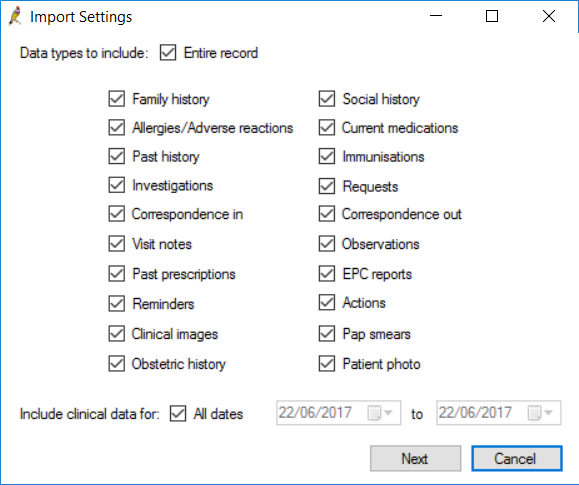
An item is included if the clinically significant date falls between the date range; the clinically significant date is the date of administering, not the date when the item is recorded by a Bp Premier user. Items without clinically significant dates, such as demographic information, are imported by default.
Bp Premier will check that the XML file is in the correct format. If any issues are found, a message will be displayed and an entry written to the BPS Bulk Export Error.log file with more information. The XML file may be in a format that Bp Premier cannot import, or the file may have been edited or corrupted and contain errors.