Frequently Asked Question
Healthlink Forms
Last Updated 3 years ago
Open a new HealthLink form
- Select View > HealthLink Forms from the main Bp Premier screen, or from the patient clinical record. The HealthLink Forms screen will appear.
- If you open the screen from the main Bp Premier screen, all completed or partly completed forms for the last 12 months will be displayed.
- If you open the screen from within a patient record, only those forms related to the current patient will be displayed.
- Select File > New Form or click the
 icon. You will be prompted for the patient to create the form for.
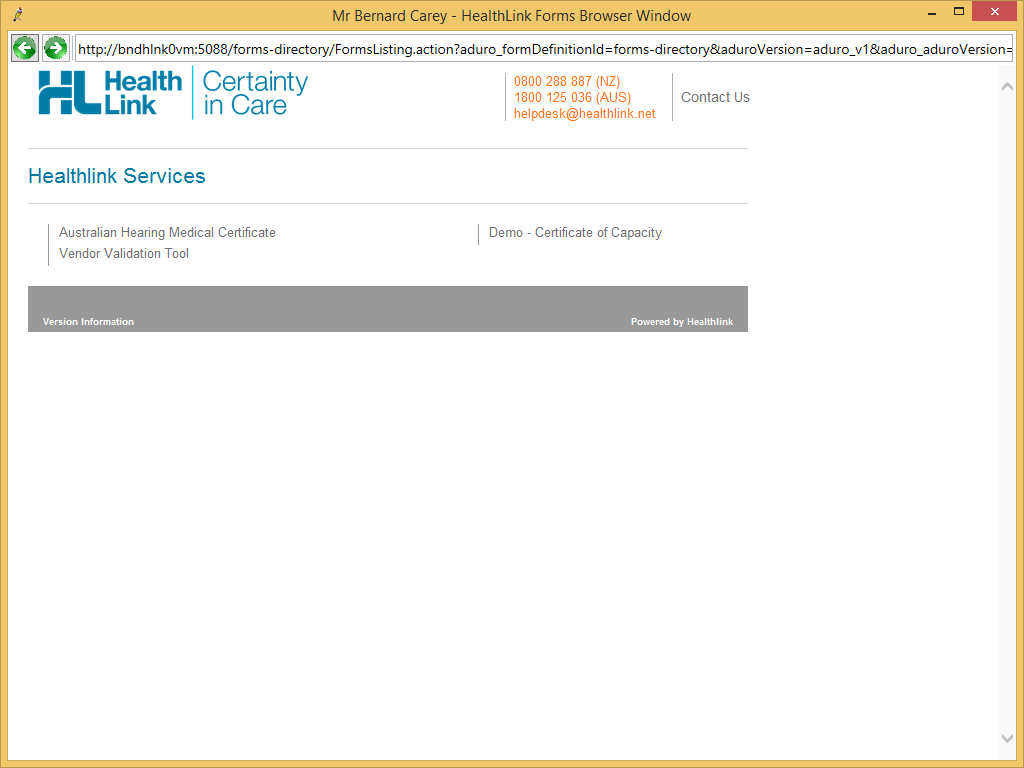
 - Search for the patient, select the patient name, and click Select. The HealthLink Forms Browser screen will appear with a list of forms relevant to the patient.
- Click on the form you want to create. The form will be displayed with fields prefilled from the practice, user, and patient information.
- Work through the form completing all the relevant information. At any time, you can Preview, Submit, or Park a form. There is also a Help button that provides information about the form.
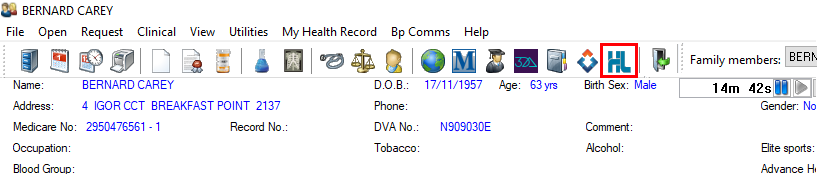
Alternately, you can click the HealthLink icon in the patient record to navigate directly to the HealthLink new forms screen.
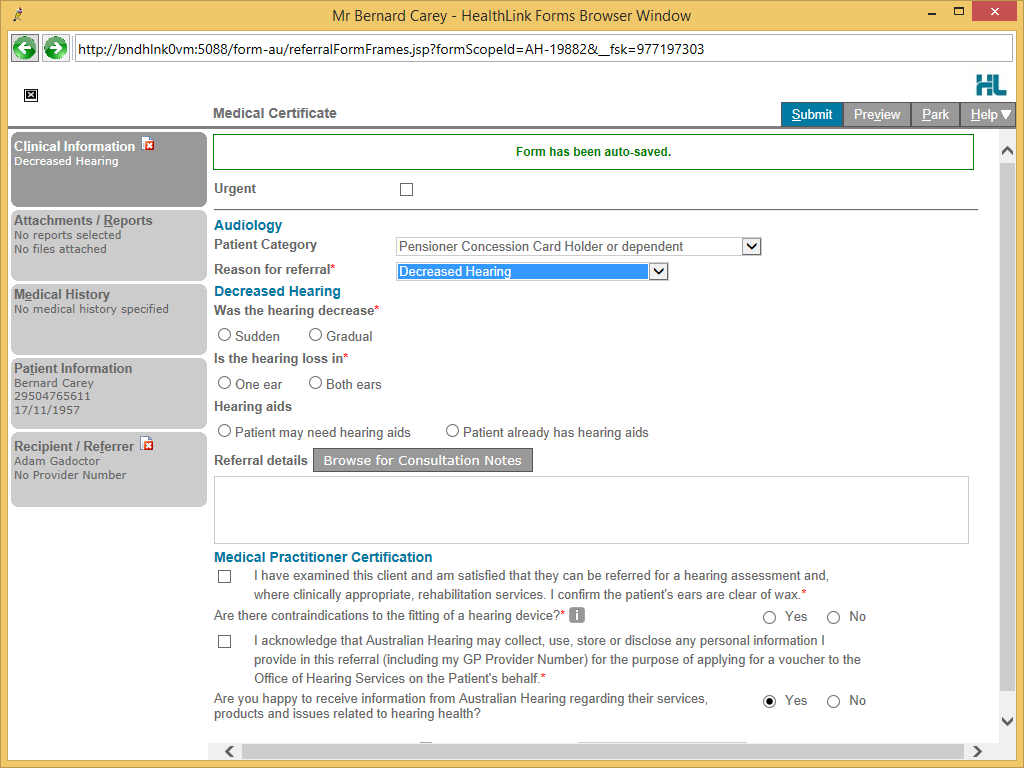
The format of the form will depend upon the information required and the recipient. All required fields are marked with a red *.