Frequently Asked Question
Add a new user
- From the main screen of Bp Premier, select Setup > Users from the menu or press Shift+F4. The Users screen will appear.
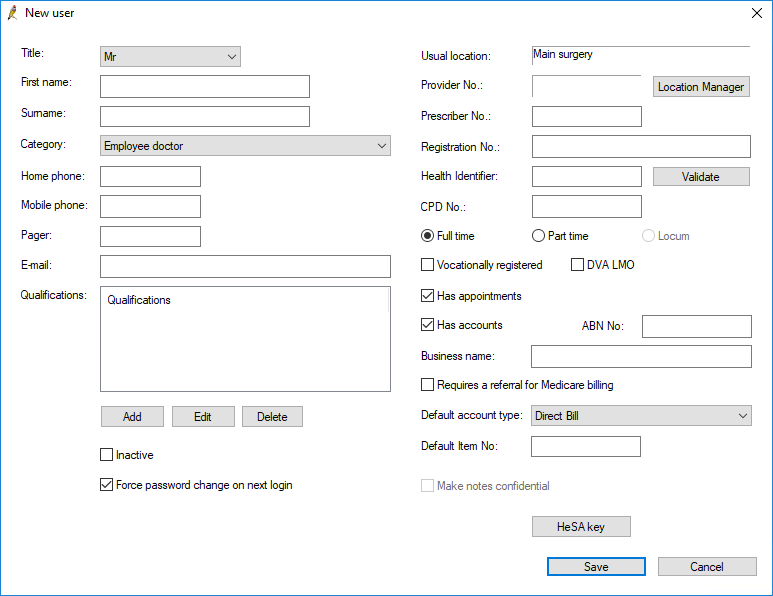
- Click Add. The New user screen will appear.
- The fields on the left hand side capture contact and personal information. If you are adding a user who is not a provider, complete the left side of the screen only.
User categories
The type of user is determined by the selected Category in the New user screen, for example, doctor, receptionist, practice manager, or an allied health role like a physiotherapist or occupational therapist.
The category a user is assigned to will affect the user's default permissions.
New user categories cannot be added manually.
Passwords
As of Saffron SP2, the Force password change on next login checkbox has been added to the New user and User details screens, and is ticked by default in the New user screen. When Force password change on next login is ticked, the user will be required to change their password when they next log into Bp Premier.
Once all required details have been added to the New user screen:
- Ensure Force password change on next login is ticked and click Save. The password screen will appear.
- Enter a dummy password and click Save.
- Provide the new user with the dummy password.
When the new user logs into Bp Premier for the first time they will be required to enter the dummy password, then set a new password.